
What Is POST?
POST stands for Power-On Self-Test. It is a diagnostic sequence that runs every time you start your computer, before the operating system loads. The BIOS or UEFI firmware checks that essential hardware components — CPU, RAM, GPU, storage — are present and responding correctly.
If POST completes successfully, the system hands control to the bootloader and Windows starts normally. If POST detects a problem, it signals the error through beep codes, a numeric code on a POST display card, or an on-screen message.
Beep Codes
Beep codes are sequences of short and long beeps produced by the motherboard speaker. The pattern varies by BIOS manufacturer. The most common are AMI (American Megatrends) and Award BIOS, though modern UEFI systems often display text messages instead.
AMI BIOS Beep Codes
- 1 short beep — POST completed successfully (some boards do this)
- 2 short beeps — Memory parity error
- 3 short beeps — Base memory failure (first 64KB)
- 4 short beeps — Timer not operational
- 5 short beeps — CPU error
- 6 short beeps — Keyboard controller failure
- 7 short beeps — Virtual mode exception error
- 8 short beeps — Display memory failure
- 1 long, 2 short — Video adapter error
- 1 long, 3 short — Video memory test failure
- Continuous beeping — Memory or video card not detected
Award BIOS Beep Codes
- 1 long, 2 short — Video error
- 1 long, 3 short — No video card or bad video RAM
- High-low repeating — CPU overheating
- Repeating short beeps — Power supply or motherboard problem
Press Del or F2 during startup to enter BIOS setup. The manufacturer name (AMI, Award, Phoenix) is displayed in the top corner of the BIOS screen. Alternatively, run msinfo32 in Windows and check the BIOS Version/Date field.
Numeric POST Codes
Higher-end motherboards include a two-digit hexadecimal display (POST code display) that shows a numeric code during startup. These codes are specific to each motherboard manufacturer and are documented in the motherboard manual.
Common codes that indicate problems (values vary by board):
- 00 or FF — Often indicates the board is not POSTing at all; check CPU and power connections
- C0–CF range — Memory initialization issues on many ASUS and MSI boards
- D0–D3 range — CPU initialization errors
- 55 — Memory not detected (common on ASUS boards)
Always cross-reference with your specific motherboard manual, as these codes are not standardized across manufacturers.
Windows 11 Blue Screen Stop Codes
Blue Screen of Death (BSOD) errors in Windows 11 display a stop code that identifies the type of error. Unlike POST codes, these occur after Windows has started loading and often point to driver or hardware issues.
Hardware-Related Stop Codes
- MEMORY_MANAGEMENT (0x0000001A) — Serious memory management error. Run MemTest86 to check RAM.
- PAGE_FAULT_IN_NONPAGED_AREA (0x00000050) — Invalid memory address accessed. Often RAM or driver related.
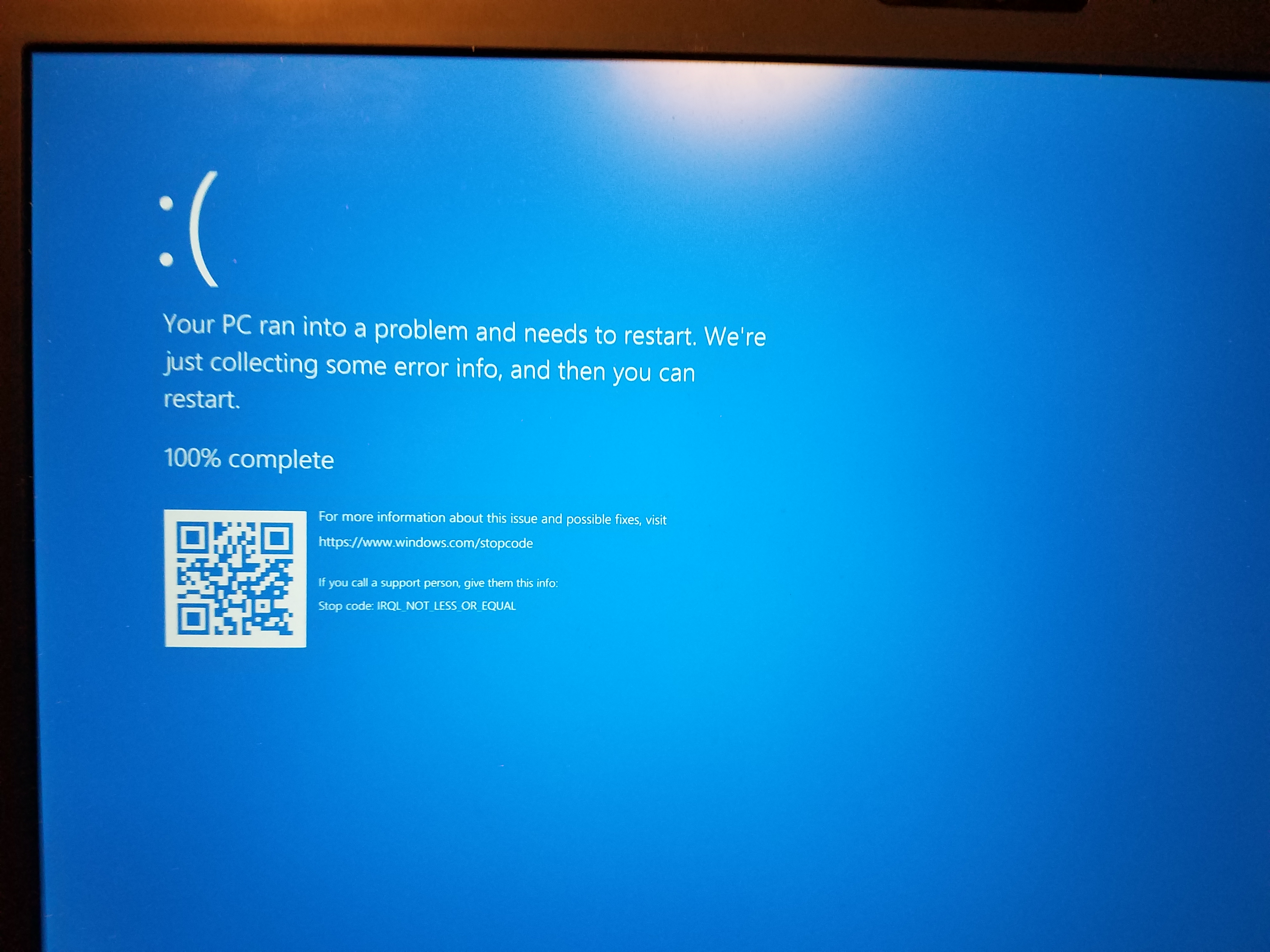
- IRQL_NOT_LESS_OR_EQUAL (0x0000000A) — Driver or hardware accessing memory at incorrect interrupt level. Often a driver issue, but can indicate RAM problems.
- CRITICAL_PROCESS_DIED (0x000000EF) — A critical Windows process terminated. Can be caused by storage issues — check HDD/SSD health.
- WHEA_UNCORRECTABLE_ERROR (0x00000124) — Hardware error reported by Windows Hardware Error Architecture. Often CPU, RAM, or overclocking related.
- KERNEL_DATA_INPAGE_ERROR (0x0000007A) — Data could not be read from the pagefile. Usually indicates a failing hard drive or SSD.
- NTFS_FILE_SYSTEM (0x00000024) — Problem with the NTFS file system driver. Check disk health with chkdsk.
Reading the Minidump File
Windows saves a minidump file after each BSOD, located at C:\Windows\Minidump\. These files can be analyzed with WinDbg (Windows Debugger, available free from Microsoft) to identify the exact driver or module that caused the crash.
For a simpler approach, WhoCrashed (free from resplendence.com) reads minidump files and provides plain-language descriptions of what caused each crash.
Troubleshooting Steps After a POST Error
- Note the exact beep pattern or code displayed
- Consult your motherboard manual for the specific code meaning
- Reseat the component indicated (RAM, GPU, CPU) — poor contact is a common cause
- Test with minimal hardware: one RAM stick, no GPU (use integrated graphics if available)
- Clear CMOS by removing the motherboard battery for 30 seconds to reset BIOS settings
- If the error persists with minimal hardware, the motherboard or CPU may be at fault