Why Hard Drive Diagnostics Matter
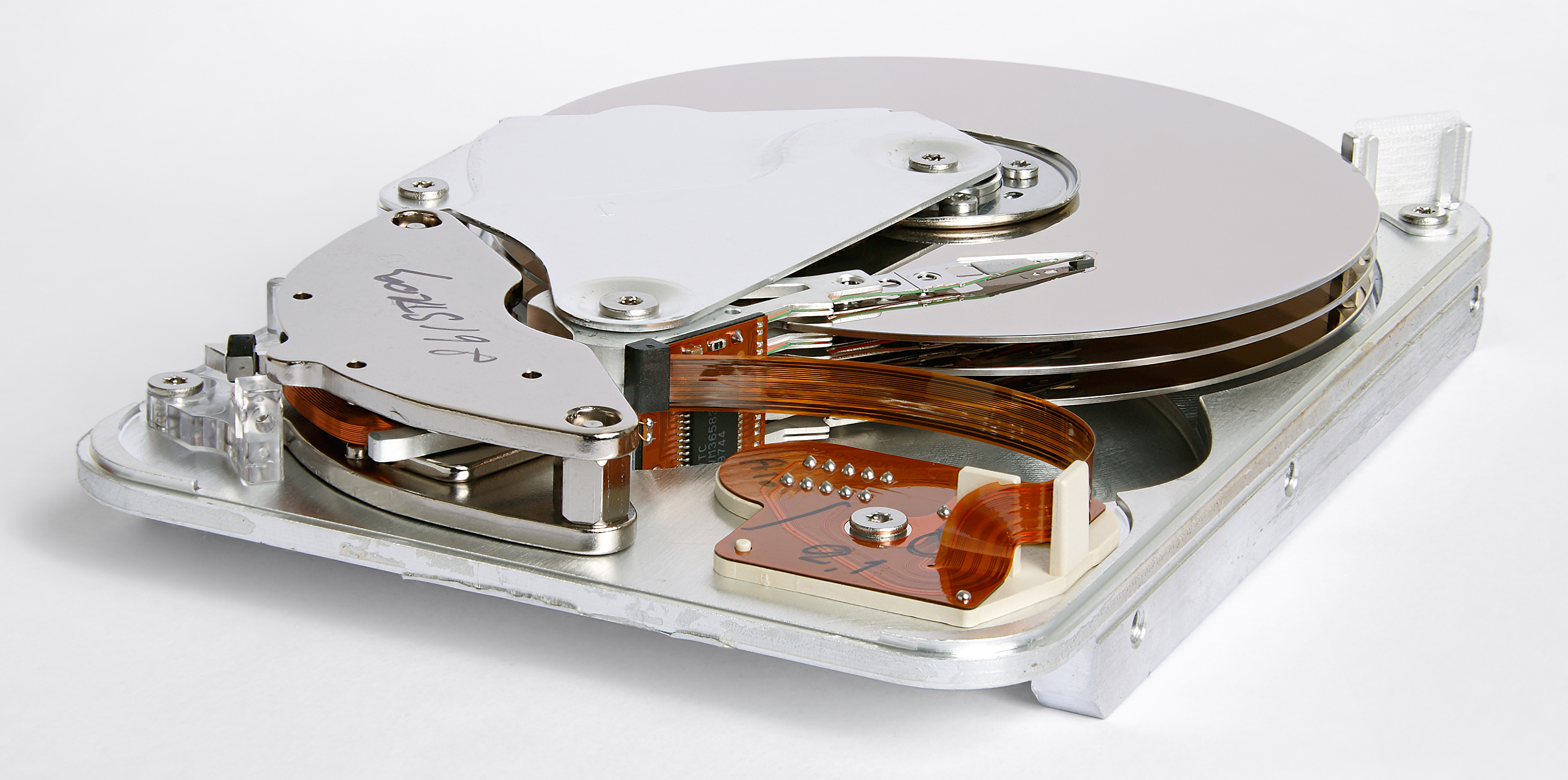
A failing hard drive is one of the most common causes of data loss in personal computers. Unlike SSDs, traditional spinning drives have mechanical components — platters, read/write heads, and actuator arms — that wear down over time. The good news is that most drives report their internal health metrics through a system called SMART (Self-Monitoring, Analysis and Reporting Technology), which you can read with free software.
Even if you primarily use an SSD, many systems still have an HDD for secondary storage. Neglecting its health can lead to sudden, unrecoverable data loss.
SMART data is your first line of defense. Checking it takes under two minutes and can give you weeks of advance warning before a drive becomes unreadable.
Step 1 — Install CrystalDiskInfo
CrystalDiskInfo is the most widely used free tool for reading SMART data on Windows. It supports traditional HDDs, SATA SSDs, NVMe drives, and most USB-connected storage. Download it from the official site at crystalmark.info.
After installation, open the application. Each connected drive appears as a tab at the top. The large colored indicator — blue for Good, yellow for Caution, red for Bad — gives you an immediate health summary.
Step 2 — Read the SMART Attribute Table
Below the summary, CrystalDiskInfo displays a table of SMART attributes. Most are technical, but a handful are critical for assessing drive health:
- Reallocated Sectors Count (ID 05) — Counts sectors the drive has moved away from because they became unreadable. Any value above zero is a warning sign. Rising values indicate active degradation.
- Pending Sectors (ID C5) — Sectors waiting to be reallocated. These are currently unreadable. A non-zero value means the drive is struggling right now.
- Uncorrectable Sectors (ID C6) — Sectors that could not be corrected. Even a value of 1 here is serious.
- Spin Retry Count (ID 0A) — How many times the drive had to retry spinning up. Elevated values suggest motor or bearing issues.
- Power-On Hours (ID 09) — Total hours the drive has been running. Beyond 30,000 hours, failure rates increase significantly for consumer drives.
If Reallocated Sectors Count, Pending Sectors, or Uncorrectable Sectors show any value above zero, back up your data immediately. Do not wait to see if the values stabilize.
Step 3 — Run a Surface Scan
SMART data reflects historical health, but a surface scan actively reads every sector on the drive to find current problems. CrystalDiskInfo's companion application, CrystalDiskMark, is designed for speed benchmarking rather than error detection. For a proper surface scan, use HDD Sentinel or the built-in Windows tool.
Using Windows Check Disk (chkdsk)
Open Command Prompt as Administrator and run:
chkdsk C: /f /r /x
The /r flag tells chkdsk to locate bad sectors and attempt to recover readable information. On a system drive, Windows will schedule the scan for the next restart. On a secondary drive, it runs immediately. A full scan of a 1TB drive typically takes 2–4 hours.
Step 4 — Check Drive Temperature
HDDs operate best between 25°C and 45°C. Sustained temperatures above 50°C accelerate wear on mechanical components. CrystalDiskInfo displays the current temperature in the top section of the interface. If your drive consistently runs hot, check that your case has adequate airflow and that drive bays are not obstructed.

Step 5 — Interpret the Results
After running diagnostics, you will fall into one of three categories:
- All clear — SMART shows no warnings, surface scan found no bad sectors, temperature is normal. Schedule the next check in 6 months.
- Caution — One or more SMART attributes are elevated but not critical. Back up immediately, monitor weekly, and plan for replacement within 3 months.
- Bad / Failing — Critical attributes are flagged. Back up now using a tool like Macrium Reflect or Clonezilla. Replace the drive as soon as possible.
Common Questions
Can I continue using a drive with reallocated sectors?
Technically yes, but it is not advisable for important data. The drive is compensating for physical damage. Once the pool of spare sectors is exhausted, data loss becomes inevitable. Use the drive only as a temporary measure while you migrate data.
Does this apply to SSDs too?
SSDs also report SMART data, but the relevant attributes differ. For SSDs, focus on Wear Leveling Count, Total Bytes Written, and Available Reserved Space. CrystalDiskInfo handles both drive types.
How often should I check drive health?
For drives under 3 years old with no prior issues: every 3–6 months. For drives over 5 years old or those showing any caution flags: monthly.
For deeper reading on SMART attributes and their thresholds, the Backblaze SMART stats research is one of the most data-rich public studies available, based on tens of thousands of drives in production use.